For Credit Card (Stripe) purchases
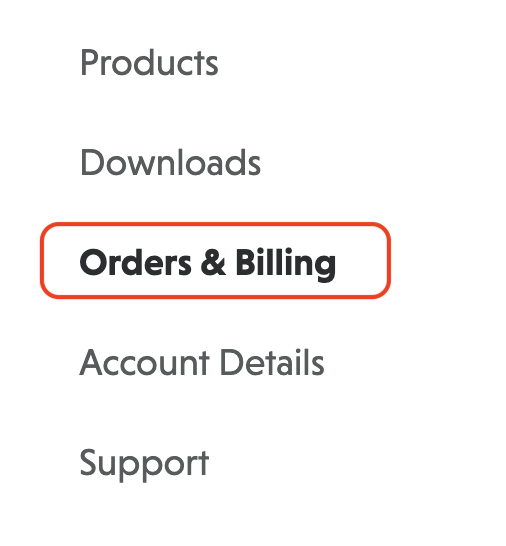
On your Ninja Forms account page, click on the Orders and Billing tab.
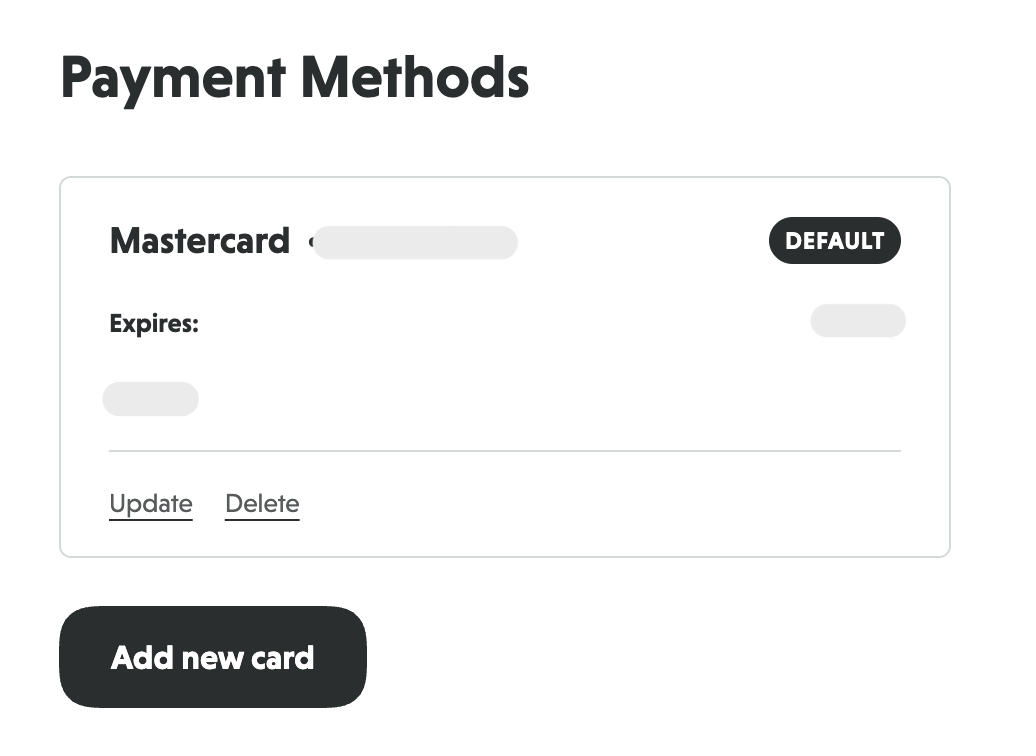
Scroll to the Payment Methods section where you will find your card/s on file. Here you can update, delete, and add a new payment method.
Click Add New Card to add a new payment method, and you are all set.
For PayPal purchases
Updating PayPal payment method
To update your PayPal payment method, you will need to login to your PayPal account and update your payment method for the renewal subscription there.
Changing PayPal accounts
If you paid using one PayPal account but want to switch it to another PayPal account please follow these steps:
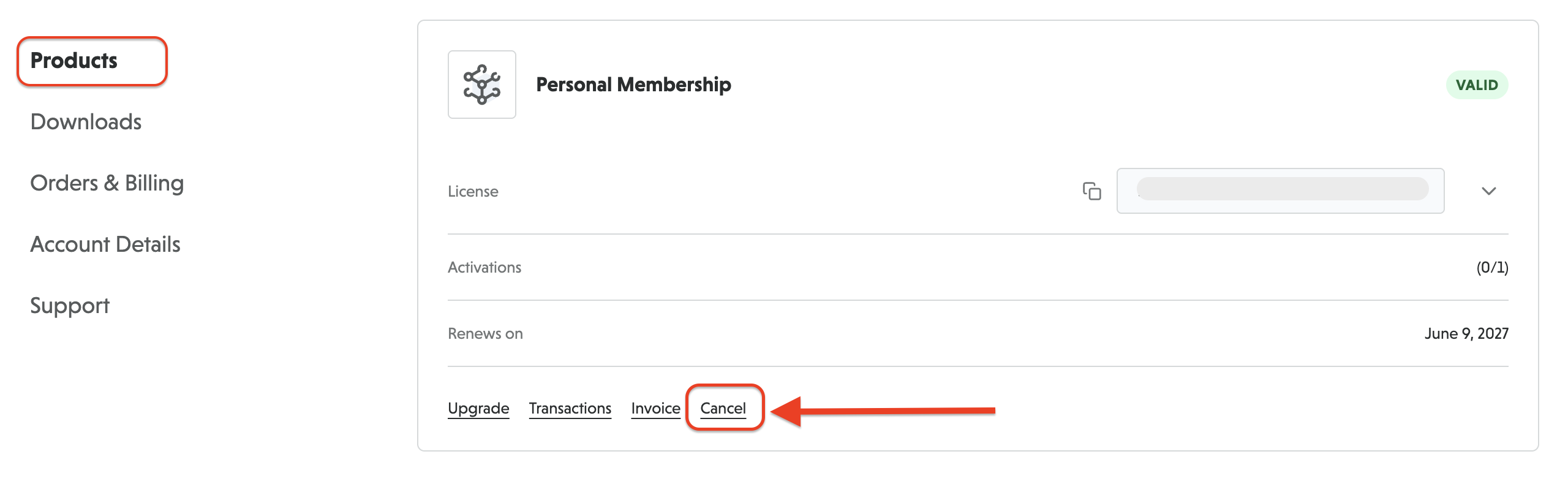
1. Login to your account on NinjaForms.com and click on the Products tab
2. Cancel the subscription you want to change the payment method for.
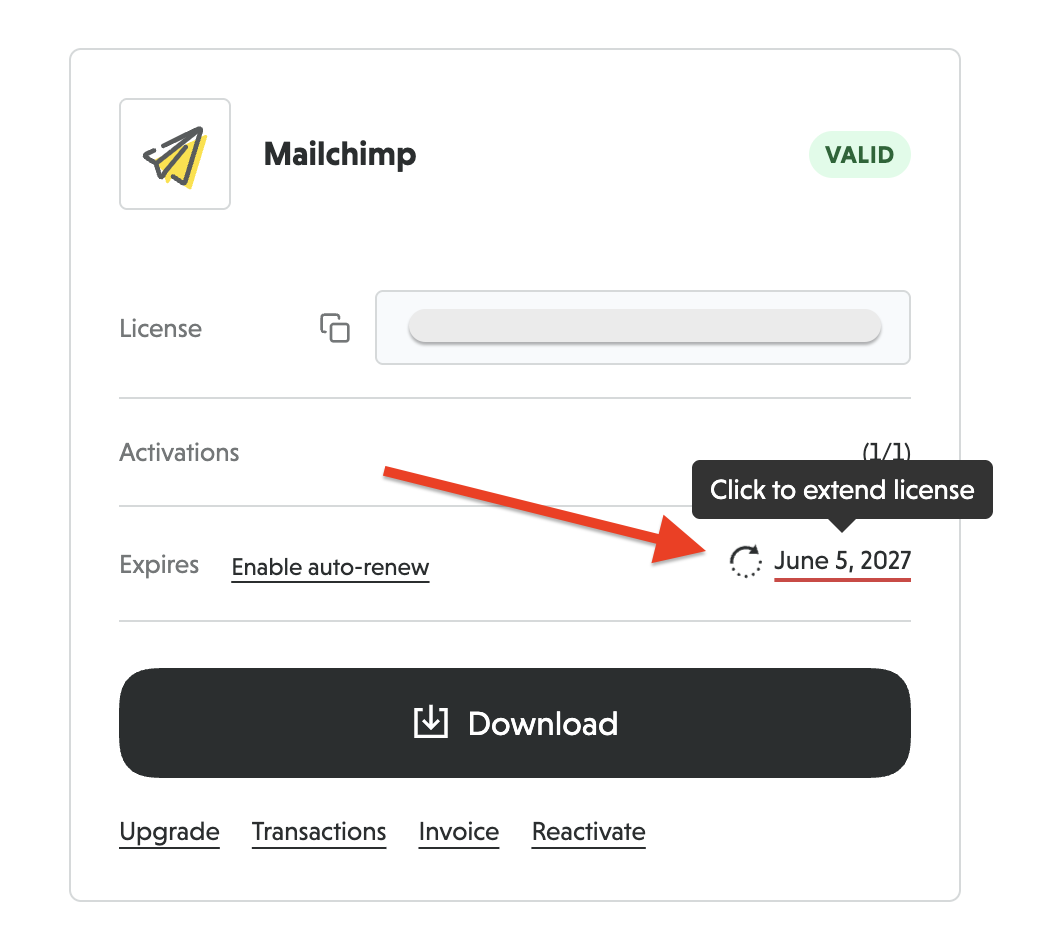
3. Renew the subscription by going to the subscription in the Products page. Hover over the date, which will show the option to extend the license, and click.
4. Pay for the renewal with the new PayPal account.
Swapping Payment Methods between Stripe and PayPal
Changing your payment method from Stripe to PayPal
1. Login to your account on NinjaForms.com and click on the Products tab.
2. Cancel the subscription you want to change the payment method for.
3. Renew the subscription by waiting for the renewal notice to be emailed to you or by going to the Products tab and hovering over the date, which will show the option to extend the license. Click to extend.
4. Pay for the renewal with the new Payment method.
Changing your payment method from PayPal to Stripe
1. Login to your account on NinjaForms.com and click on the Products tab.
2. Cancel the subscription you want to change the payment method for.
3. Renew the subscription by waiting for the renewal notice to be emailed to you or by going to the Products tab and hovering over the date, which will show the option to extend the license. Click to extend.
4. Pay for the renewal with the new Payment method.