Collect Files Through Your Forms
Add file upload fields to your forms. Accept any file type, set size limits, and save to your Media Library, Google Drive, Dropbox, or Amazon S3.
Risk-Free 14 Day Guarantee
You'll love it or we'll refund you fully. No questions asked.
Accept File Uploads in WordPress Forms
You need to collect files through your WordPress forms. Documents, images, resumes, applications, whatever your users need to submit. The File Uploads add-on for Ninja Forms makes it simple to add upload fields to any form, accept multiple file types, and store submissions securely.
No complicated setup. No coding required. Just drag an upload field into your form builder, configure your file type restrictions, and you’re ready to accept uploads. Store files in your WordPress Media Library, send them directly to Google Drive or Dropbox, or upload to Amazon S3. You control where files go and who can access them.
With Ninja Forms File Uploads, you can:
Key Features
Upload Files
Add a file upload field to any WordPress form.
Limit Attachments
Set the number of files you want to accept.
Set File Size Limits
Specify minimum & maximum allowed file sizes.
Restrict File Types
Control the allowed file types per field.
Rename Files
Set rules to change file names on upload.
Organize Uploads
Create custom file directories per upload.
Save Anywhere
Upload to your WP media library, Google Drive, & more.
Email Files
Attach uploads to notification emails.
Key Features of WordPress File Upload Forms
Drag-and-Drop File Upload Fields
Add upload capability to any WordPress form with drag-and-drop ease. Your users can drop files directly into the upload field or click to browse their device. Accept single files or configure fields to accept multiple files per submission. No plugins to install on the user side. It just works in any modern browser.
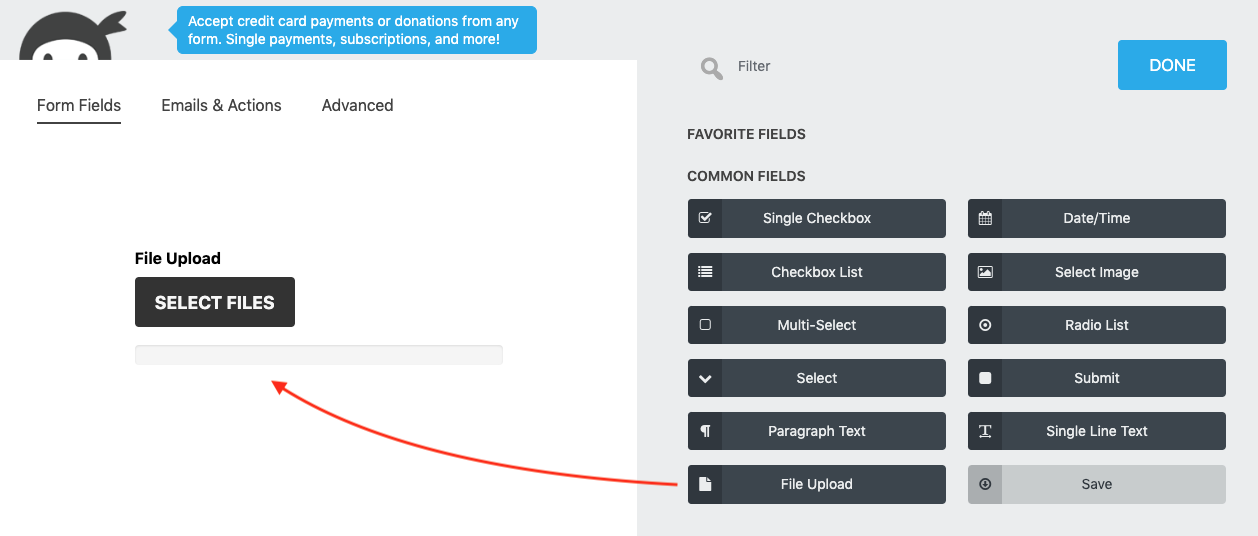
File Type and Size Restrictions
Define exactly what file types you’ll accept with an allow list of approved extensions. Accept common formats like PDF, DOC, JPG, PNG, or restrict to specific types for your use case. Set minimum and maximum file sizes to prevent oversized uploads from consuming server resources. Block dangerous file types before they’re ever uploaded.
Common file configurations:
- Resume submissions: PDF, DOC, DOCX only
- Image galleries: JPG, PNG, GIF
- Document portals: PDF, XLS, XLSX, DOC, DOCX
- Support tickets: All common formats, multiple files allowed
File type restrictions happen at the form level before upload begins. Users see immediate feedback if their file doesn’t match your requirements. No wasted time uploading files that will be rejected.
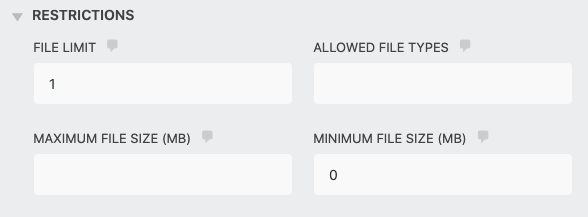
Cloud Storage Destinations
Upload files directly to Google Drive, Dropbox, or Amazon S3. You’re not limited to the WordPress Media Library. Send different forms to different storage locations. Mix and match destinations across your site.
Why use cloud storage for file uploads? Keeps large files off your WordPress server. Unlimited storage capacity. Better security and access controls. Automatic backups. Team collaboration tools built in. No server upload limits to worry about.
Cloud storage bypasses the predictable URL structure of WordPress uploads, adding an extra layer of security. Files stored in Google Drive or Dropbox aren’t accessible via direct URL unless you explicitly share them.
Custom File Organization
Auto-rename uploaded files and organize them into custom folder structures using data from your form fields. Name files based on submitter name, submission date, order number, or any other form field. Create folder hierarchies that match your workflow.
Example: A job application form could automatically rename resume uploads to “Resume – {field:applicant_name} – {date:Y-m-d}.pdf” and organize them into folders like “Applications/2026/January/”. Every file is instantly organized without manual sorting.

Attach Files to Email Notifications
Need uploaded files delivered straight to your inbox? File Uploads can automatically attach submitted files to your notification emails. When someone submits a support ticket with a screenshot, that image arrives with the email notification. No need to log into WordPress or check cloud storage.
This works for any file type your form accepts, making it easy to route uploads directly to team members who need them.
WordPress File Upload Security
Security matters when accepting file uploads. Our Add-on uses allow-list-based restrictions to block dangerous file types before they reach your server. Set file size limits to prevent resource abuse. Store files in private cloud storage with controlled permissions, or use WordPress’s built-in Media Library with user role restrictions.
File type validation happens in two places: client-side for immediate user feedback, and server-side to prevent malicious uploads. You define the allow list. Everything else is automatically rejected.
When you store files in Google Drive, Dropbox, or Amazon S3, they’re not accessible via predictable WordPress upload URLs. Only users with explicit access to your cloud storage can retrieve files. For sensitive submissions, this adds significant protection.
Collect Files Right Inside Your Forms
Collect documents, images, and files right on your form, so submitters stop emailing attachments after the fact. Add it to your cart and start accepting uploads on any form.
Backed by priority email support and a 14-day money-back guarantee.
Common Use Cases for File Upload Forms
File uploads pair naturally with forms that collect more than just text. Ninja Forms includes a growing library of pre-built form templates, many of which include upload fields ready to go. Pick a template that matches your use case, customize it to fit your workflow, or build from scratch.
Here are some of the most popular form types that use upload fields:
- Job application forms: Collect resumes, cover letters, and portfolios alongside applicant details. Auto-organize submissions by position or date.
- Insurance claim forms: Let claimants attach photos of damage, police reports, receipts, and supporting documentation. Route files to secure cloud storage for claims processing.
- Scholarship application forms: Accept transcripts, essays, recommendation letters, and proof of enrollment in a single submission.
- Client intake forms: Collect signed contracts, identification documents, and project briefs from new clients. Store securely in Google Drive or Dropbox with automatic folder organization.
- Maintenance request forms: Let tenants or employees attach photos of the issue alongside their description. Files go straight to your team’s inbox as email attachments.
- Bug report forms: Accept screenshots, screen recordings, and error logs alongside reproduction steps. Attach files to notification emails so your development team gets full context immediately.
Supported File Upload Formats
The File Uploads add-on supports all file types allowed by WordPress, including but not limited to:
- Documents: PDF, DOC, DOCX, XLS, XLSX, PPT, PPTX, TXT, RTF, ODT, ODS
- Images: JPG, JPEG, PNG, GIF, BMP, TIFF, SVG, WEBP, ICO
- Audio: MP3, WAV, OGG, M4A, FLAC
- Video: MP4, MOV, AVI, WMV, FLV, WEBM
- Archives: ZIP, RAR, 7Z, TAR, GZ
- Code: HTML, CSS, JS, JSON, XML, CSV
You control which formats to accept per form. Configure an allow list of specific extensions, or allow all formats if your use case requires it. WordPress itself blocks executable files (.exe, .bat, .sh) by default for security reasons.
Why Choose Ninja Forms for File Uploads?
There are plenty of WordPress file upload plugins out there. Here’s why over 1 million sites choose Ninja Forms:
No Coding Required: Build file upload forms with a visual drag-and-drop builder. If you can point and click, you can create forms.
Unlimited Forms and Submissions: Create as many file upload forms as you need. There are no artificial limits on submissions or storage (beyond what your host or cloud service provides).
Works with Your Existing Tools: Integrate with Google Drive, Dropbox, Amazon S3, email marketing platforms, CRMs, and more. Your uploads can trigger automated workflows in the tools you already use.
Priority Email Support: Paid customers get access to our support team. We respond to every ticket and help troubleshoot issues until they’re resolved.
14-Day Money-Back Guarantee: Try the add-on risk-free. If it doesn’t meet your needs, we’ll refund your purchase within 14 days.
Collect Every Document With the Application
When a submission means a transcript, a permit, or a portfolio, File Uploads sends each file straight to whoever reviews it, with nothing to chase down by email. Add it to your cart and put it on your next intake form.
Priority email support and a 14-day money-back guarantee included.
Frequently Asked Questions
-
Install Ninja Forms and the File Uploads add-on, then drag the File Upload field into any form using the visual form builder. Configure which file types to accept and where to store uploaded files. No coding required.
-
You decide which file types to accept. Create an allow list of permitted extensions including but not limited to PDF, DOC, DOCX, JPG, PNG, GIF, ZIP, MP4, and more. WordPress blocks executable files like .exe, .bat, and .sh by default for security.
-
File size limits are set by your WordPress host and PHP configuration. File Uploads lets you define minimum and maximum file size restrictions per upload field to stay within your server or cloud storage limits.
-
Use File Uploads' allow-list approach to restrict file types before upload. Set maximum file sizes to prevent abuse. Route files to cloud storage (Google Drive, Dropbox, S3) to bypass predictable WordPress Media Library URLs and gain better permission controls.
-
Yes. File Uploads integrates with Google Drive, Dropbox, and Amazon S3. Files can be sent directly to cloud storage, bypassing your WordPress server entirely. This saves hosting space and provides centralized file management in the tools you already use.
-
Yes. File Uploads can automatically attach submitted files to your email notifications. This delivers uploaded files straight to your inbox without requiring you to log into WordPress or check cloud storage.