Don’t Miss This Simple Trick for Select Fields!

Ever needed a checkbox or radio list on your form to display a default placeholder option? You might have tried simply ticking the ✓ icon next to the list option you want as select field default placeholder. Works, right? Problem solved. Alright, not so fast.
Struggling with forms being submitted with the default placeholder option still in your select fields or dropdowns?
Ticking the ✓ will set that list option as the select field default placeholder. The problem you probably discovered quickly after that is that your form can still be submitted with the default placeholder selected. That’s just about useless if you need an actual response to that field!
There’s a quick and easy solution to forms being submitted with the select field default placeholder!
Forms being submitted with your select field default placeholder still in place? You’re one step away from a really easy fix.
Adding a default placeholder to a dropdown, checkbox, or radio list is super easy. If you don’t know how, it’s demonstrated directly below. If you know how to set one already and just need to know how to keep the form from submitting with the select field default placeholder in place, skip one section down!
Please note that for all Ninja Forms versions 3.4.11 and later (released 7 May 2019), all new installations of Ninja Forms will need to have Developer Mode enabled to see all the features described below.
How to add a default placeholder to a dropdown, checkbox, or radio field
Add/choose your select field and click on it to open its settings window, and then:
- Click the blue circle/+ icon next to Options to add an additional list option.
- For the list option label, write something prompting the user to make a selection.
- In the right-hand column under the ✓ icon, tick the box next to this list option.
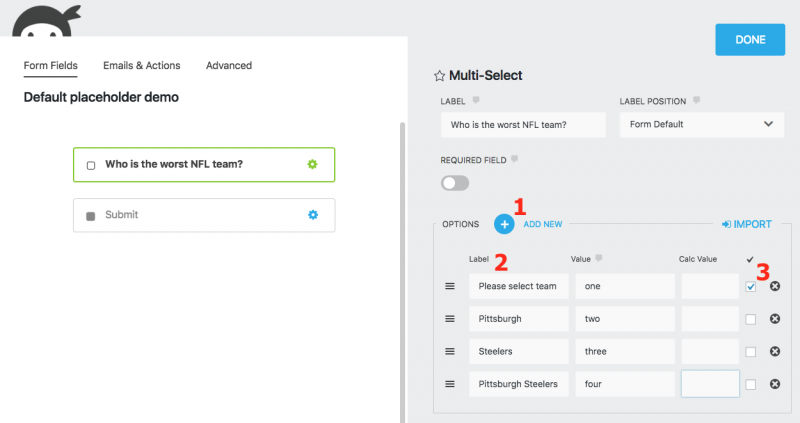
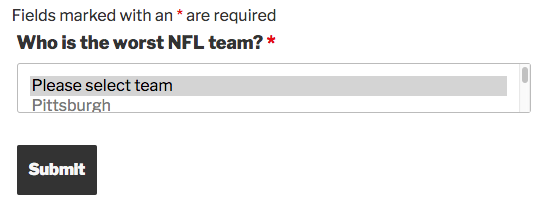
You now have a default placeholder for this select field. When the user views the form on your site, this option will be pre-selected for them:
How to keep your placeholder selection from being submitted
If this field contains pertinent information that you need, having the form submit with the placeholder is a pain. If the user doesn’t make a selection, that’s exactly what happens. Even if the field is marked as required!
To keep this from happening, you only need to make a single adjustment.
In the Value column, leave a blank for your placeholder, then set the field to required if it isn’t already.
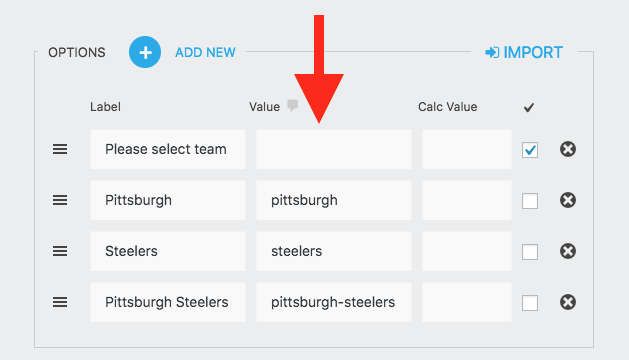
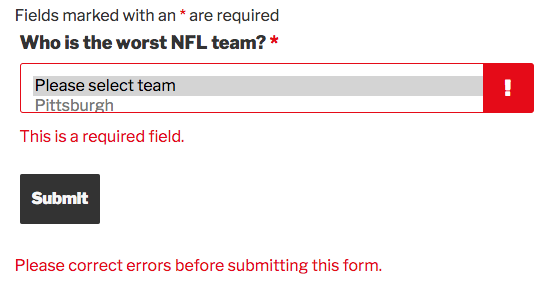
With the field set to Required, any list option not containing a Value will not pass validation. In plain English, that means if a user doesn’t pick an actual option, the form won’t submit. Instead, it will prompt them to make a selection:
As an aside, these Values are also what will appear in submissions and email responses, rather than the Label. Set the rest of them so you’ll know what they are 🙂
Never have a form submitted with the placeholder selected again!
Following the technique above should resolve any issues you have with guests submitting your WordPress forms without a valid response chosen in your select fields!
This article was written largely because this is a question we see regularly in our support channel and blog comments. You’ll find this article’s comments below.
What questions do you have about using Ninja Forms?
Thank you very much for this solution. This fixed my issue 🙂
Perfect! Love to hear that 🙂
Doesn’t work for me.
We have a required select dropdown, the value field is empty and the user can still submit the form without selecting any option
OK, it took a couple more “Publish” clicks and a hard refresh… Now it works 🙂
Hi,
I am glad this is working for you. If you encounter any issues or have followup questions, please reach out to us at https://1a80eb25-3346-4ab7-bfe7-c210e4f3f025.cc09.conves.io/contact/ in order to get a timely response. There, we offer support free support directly to our Ninja Forms users with significantly more privacy and a faster response time.
Best regards,
Curtis
WP Ninja
Aii almost thought I found the right post.
My question is; how can I add an input field to the radio list.
1. option a
2. option b
3. option c
4. Other,.. (input..)
Hi,
While there is not currently a feature to add an input box to a Radio field, with the Conditional Logic add-on, you could have a Single Textbox Field display on your form when the “Other” option is selected.
Here is additional information about this add-on so that you can make the most informed decision:
Conditional Logic add-on (https://1a80eb25-3346-4ab7-bfe7-c210e4f3f025.cc09.conves.io/extensions/conditional-logic/)
Best regards,
Curtis
WP Ninja
Sad to say it doesnt work for me either. Not the submiting part, but that part of actualy getting what user chose. When i check submissions in Ninjaforms, it always post with placeholder and i am getting blank field thanks to that….
Hi,
I’m sorry to hear that this is not working for your form. If you are still encountering this, please reach out to us at https://1a80eb25-3346-4ab7-bfe7-c210e4f3f025.cc09.conves.io/contact/ . There, we offer support free support directly to our Ninja Forms users with significantly more privacy and a faster response time.
Best regards,
Curtis
WP Ninja
There is no “value” field. Just label.
Hey! Enable Developer Mode in Ninja Forms > Settings and you will be able to adjust the list options values.
Cheers,
Quay
Is there any way to turn a multi-select field into a Multiple Search Selection field?
Similar to what is provided by Semantic-UI here: https://semantic-ui.com/modules/dropdown.html
Happy to do some extra work behind the scenes, if need be, but just wanted to check if the functionality is there first.
When I added a Select option in Ninja, I only see Label but no Value to make the change mentioned above. Am I doing something wrong?
Hi Zahid,
Have you enabled the Developer Mode? More on that here https://1a80eb25-3346-4ab7-bfe7-c210e4f3f025.cc09.conves.io/docs/developer-mode/
Awesome! That was really helpful. I like it when plugin developers help their users.
I’ve found a work around for Checkbox List when the boxes can all be selected but you only want one to be selected for example:
Yes
No
You put in Conditional Logic:
‘When Yes has been selected > Deselect Option Yes AND When NO has been selected > Deselect Option No’
That way the user can’t select 2 options, only 1 (provided you have ‘Required Field’ selected also.
There is no option of value in select field , there is only label field . How should i enable value option then. Please help
Hi there,
You need to have Developer Mode enabled to see the value option.
Is it possible using conditional logic to add a field – say, a select or radio list value, to the confirmation mail, only if it is selected by the user (and not having a default value)
Please let me know.. thanks.
Right now if it has a value selected (even if it’s a default value) then it will appear. Not a great way around that right now, sorry.
If you like Browns you’ll adore Bangkok. Not quite as much I adore this fix of yours though. Cheers.
Glad the fix helped and holy moly, I didn’t realize we have fans that far abroad, but for real!
DAWG CHECK!! haha
Hi,
I’m trying to do this on a Select (not multi-select. I can’t see a value field and the form is submitting with the placeholder.
Thanks.
Please ignore my message – I saw the answer above!
Thanks.
Hi, is there a way to transform a select list field into a search selection field? like in https://semantic-ui.com/modules/dropdown.html
Hello Andrea,
Unfortunately, our list fields do not yet include search capabilities.
This is exactly what I was looking for! Thank you for writing this article.
Hello !
It doesn’t work for me for my form, I deleted the the value, but still people can submit without choosing the required option, it works only in Chrome, but not in Firefox and Safari.
Do you have a way to fix this issue ? Thank you in advance.
Hello Idris,
Will you reach out to our customer support team, so we can assist you in troubleshooting: https://1a80eb25-3346-4ab7-bfe7-c210e4f3f025.cc09.conves.io/contact/?
An old article, but if people are finding the form still submits, just check the value of the placeholder hasn’t been added back in.
I found that even after leaving the value empty, if I published, and re-edited the form, opened the form input in question, the default value gets added back in, most likely through client-side js in the admin interface.
This is also the same with field keys, which has proven to be particularly problematic – editing a field label tends to then update the field key, which means the values for historical submissions don’t show (as the field keys don’t match). Again I suspect client-side js is trying to be too clever, but actually causes issues. One to escalate to your devs NF.
Hi Chris
Please reach out to us via our contact form for support. We’ll be happy to help.
Don’t forget to include a System Status report and an exported copy of the form having issues.
Thanks!
Mia