Field Types

Single Line Text

Single Line Text fields perfectly accommodate short answer user responses. User Information Fields pre-generated using the Single Line Text field include First Name, Last Name, Address, City, Zip, Email, and Phone fields.
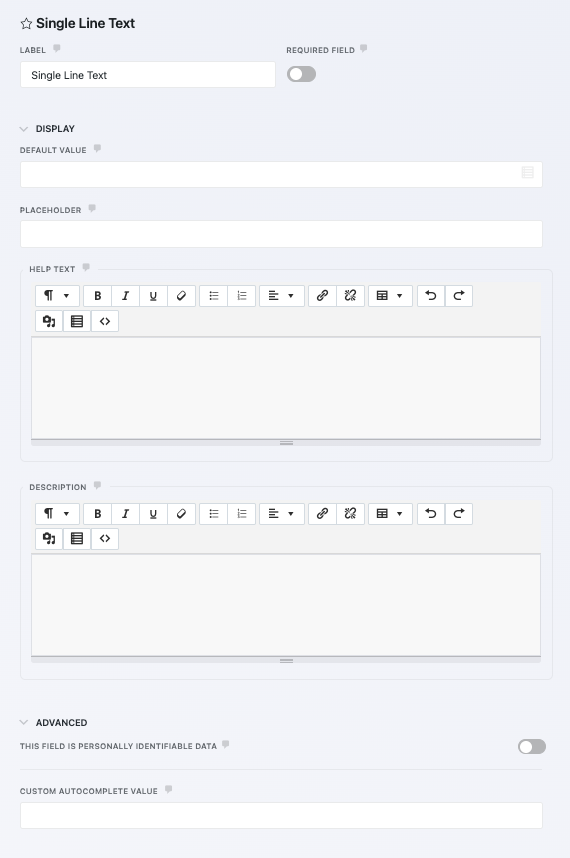
single line text custom autocomplete value

General Settings

Label
The name of the field as displayed to your users.
Required Field
If enabled, this field must be completed before the form can be submitted.

Display Settings

Default Value
The field will load pre-populated with text entered as the Default Value. This setting supports merge tags to display unique or custom values.
Placeholder
Text entered here will appear when the form loads, but disappear when the user starts typing.
Description
Any text entered here will appear between the label and the field.

To see these features, you will need to enable Developer Mode in Ninja Forms’ settings.

Restrictions Settings

Limit Input to This Number
Limits the number of characters or words that a user can enter into the field. Text entered into the “Text to Appear After Counter” will display alongside the character/word counter.
Disable Input
Prevents users from typing into the field.
Disable Browser Autocomplete

Prevents the browser from recommending input into the field as the user types into it.

Autocomplete Limitations
Firefox only: Disabling autocomplete is ignored by Chrome, Edge, and other Chromium-based browsers due to their design priorities. This is a browser limitation, not a plugin issue. Ninja Forms correctly implements the HTML specification, but Chromium browsers override this setting by design.
For more details, see the Chromium issue tracker.
Input Mask

Use to restrict the type of data the field will accept (alpha characters only, numeric characters, only, or alphanumeric characters only) and the format it will be accepted in.

US Phone
numeric only, (___)___-____
Date
numeric only, __/__/____
Currency
numeric only, $__.__
Custom
Define input restrictions with a custom mask. Symbols are supported (i.e. a slash / comma , hyphen – etc).

Predefined placeholders represent character types:
a = alpha character only
9 = numeric character only
* = alphanumeric character

Characters can only be input by the user in a space where these placeholders exist.
Backend Example: 999-999-999
Frontend Result: ___-___-___ , where only numeric characters can be input.

Display Settings

Custom Class Names

Add custom classes to containers and fields.

Container
Text entered here applies a custom HTML class to this field’s wrapper.
Element
Text entered here applies a custom HTML class to this field’s element.
Help Text
Entering text here will display an informational icon next to the field label. When a user hovers over it, a small window will appear containing this text.

Advanced Settings

Label Position
Changes the orientation of the field label relative to the field element (above, below, left, right, hidden).
Custom Name Attribute
Text entered here applies a custom HTML input “name” attribute.
This field is personally identifiable data
Toggling this on flags the field as personally identifiable data. When a Delete Data Request or Export Data Request action is processed, fields marked as personally identifiable data will be deleted, anonymized, or flagged for export for the user submitting the request.
Custom Autocomplete Value

By default, Ninja Forms already includes autocomplete settings for most fields. However, if youโ€™re creating a custom field type that we donโ€™t provide, you can use this option to manually set your own autocomplete value. This is especially useful for accessibility and browser autofill behavior, allowing you to tell browsers exactly what type of information should go in the field (for example, email, organization-title, or given-name).

For a full list of valid autocomplete tokens and examples, see the MDN documentation on autocomplete values.

Please note: This setting is intended for users comfortable working with HTML attributes and accessibility standards.

Administration Settings

Field Key
A unique programmatic key that can be used to identify and target your field for custom development. One is generated for each field automatically, and this is what you see pre-populated in the setting. It can be changed, though doing so will not update it in anything you’ve already written.
Admin Label
Text entered here will replace the Label of the field as it appears when viewing and exporting submissions only.

Paragraph Text

The Paragraph field perfectly accommodates longer user responses that won’t fit in a Single Line Text field, and offers a rich text editor for the user if desired for formatting.
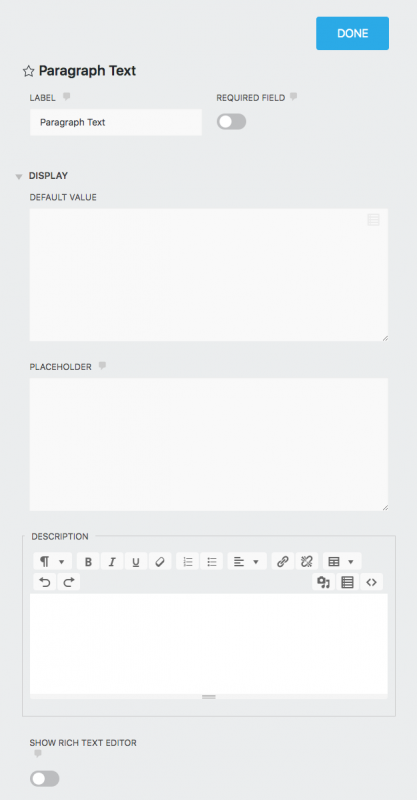
General Settings

Label
The name of the field as displayed to your users.
Required Field
If enabled, this field must be completed before the form can be submitted.

Display Settings

Default Value
The field will load pre-populated with text entered as the Default Value. This setting supports merge tags to display unique or custom values.
Placeholder
Text entered here will appear when the form loads, but disappear when the user starts typing.
Description
Any text entered here will appear between the label and the field.
Show Rich Text Editor
If enabled, a rich text editor will be provided for the user to format their responses in this field. Off by default.

To see these features, you will need to enable Developer Mode in Ninja Forms’ settings.

Restrictions Settings

Limit Input to This Number
Limits the number of characters or words that a user can enter into the field. Text entered into the “Text to Appear After Counter” will display alongside the character/word counter.
Disable Input
Prevents users from typing into the field.
Disable Browser Autocomplete

Prevents the browser from recommending input into the field as the user types into it.

Autocomplete Limitations
Firefox only: Disabling autocomplete is ignored by Chrome, Edge, and other Chromium-based browsers due to their design priorities. This is a browser limitation, not a plugin issue. Ninja Forms correctly implements the HTML specification, but Chromium browsers override this setting by design.
For more details, see the Chromium issue tracker.

Display Settings

Custom Class Names

Add custom classes to containers and fields.

Container
Text entered here applies a custom HTML class to this field’s wrapper
Element
Text entered here applies a custom HTML class to this field’s element
Help Text
Entering text here will display an informational icon next to the field label. When a user hovers over it, a small window will appear containing this text.

Advanced Settings

Label Position
Changes the orientation of the field label relative to the field element (above, below, left, right, hidden)

Administration Settings

Field Key
A unique programmatic key that can be used to identify and target your field for custom development. One is generated for each field automatically, and this is what you see pre-populated in the setting. It can be changed, though doing so will not update it in anything you’ve already written.
Admin Label
Text entered here will replace the Label of the field as it appears when viewing and exporting submissions only.

Radio List

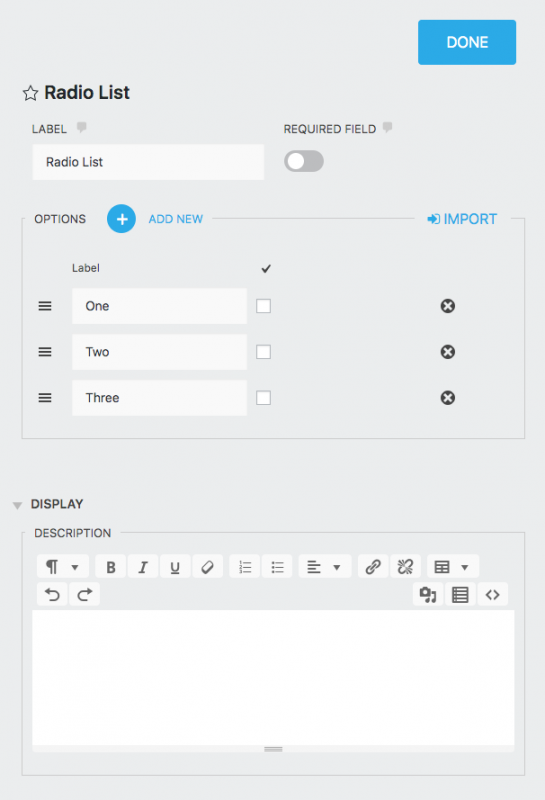
The Radio List field presents options from which a user can make a single selection only.
Need to Populate a Long List?
Learn how to easily populate a long list in Ninja Forms using a CSV (Comma-Separated Value) file and bulk pasting into the Import field.
View the step-by-step tutorial here.

General Settings

Label
The name of the field as displayed to your users.
Required Field
If enabled, this field must be completed before the form can be submitted.
Options

The options and values for the fields.

Add New
Adds another option to the list.
Label
The name of the list option displayed to the user.
Calc Value
When including this field in a calculation, the value entered here will be entered as a part of that calculation if the given list option is selected.
โ€œCheckโ€ column
Whichever list option checked here will display as the default option to the user.

Display Settings

Help Text
Entering text here will display an informational icon next to the field label. When a user hovers over it, a small window will appear containing this text.
Description
Any text entered here will appear between the label and the field.

To see these features, you will need to enable Developer Mode in Ninja Forms’ settings.

General Settings

Options

Field options.

Value

Use this to change what will be presented in the submission data if this list option is selected by the user. It defaults to match the Label of the list option. Only certain characters are supported for use here: a-z , 0-9 , hyphen โ€“ , underscore _ , at @ , and Space.

If your Select field is marked Required in the field properties, any option that has a blank Value (such as a placeholder like โ€œPlease choose one of the followingโ€) will result in a โ€˜required field errorโ€™. The visitor must select an option with a real Value before the form can be submitted.

Display Settings

Custom Class Names

Add custom classes to containers and fields.

Container
Text entered here applies a custom HTML class to this field’s wrapper.
Element
Text entered here applies a custom HTML class to this field’s element.

Advanced Settings

Label Position
Changes the orientation of the field label relative to the field element (above, below, left, right, hidden).

Administration Settings

Field Key
A unique programmatic key that can be used to identify and target your field for custom development. One is generated for each field automatically, and this is what you see pre-populated in the setting. It can be changed, though doing so will not update it in anything you’ve already written.
Admin Label
Text entered here will replace the Label of the field as it appears when viewing and exporting submissions only.

Select

The Select field is a list field that allows for one selection by the user from a drop-down. User Information Fields pre-generated using the Select field include Country and US States.
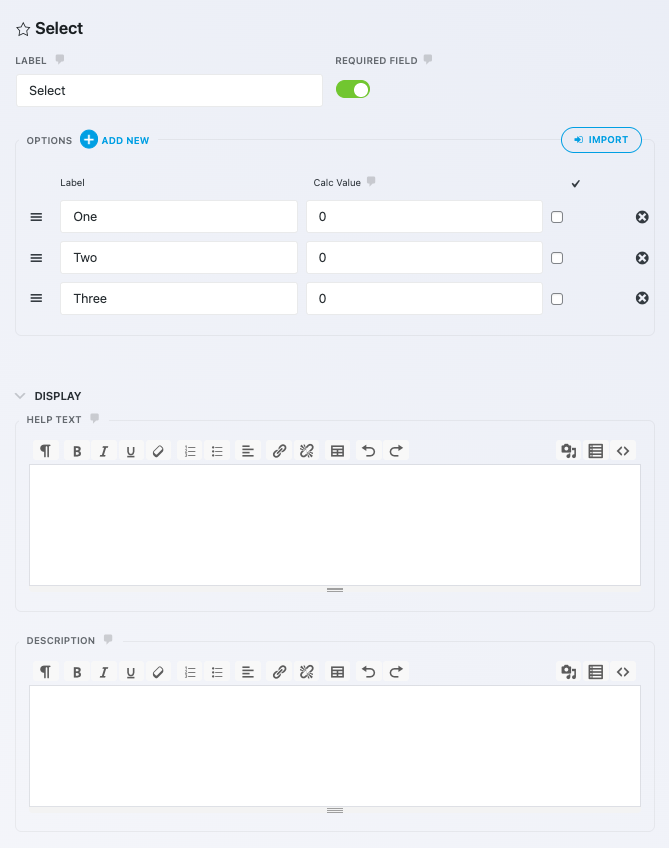
select field options and display settings
Need to Populate a Long List?
Learn how to easily populate a long list in Ninja Forms using a CSV (Comma-Separated Value) file and bulk pasting into the Import field.
View the step-by-step tutorial here.

General Settings

Label
The name of the field as displayed to your users.
Required Field
If enabled, this field must be completed before the form can be submitted.
Options

The options and values for the fields.

Add New
Adds another option to the list.
Label
The name of the list option displayed to the user.
Calc Value
When including this field in a calculation, the value entered here will be entered as a part of that calculation if the given list option is selected.
โ€œCheckโ€ column
Whichever list option checked here will display as the default option to the user.

Display Settings

Help Text
Entering text here will display an informational icon next to the field label. When a user hovers over it, a small window will appear containing this text.
Description
Any text entered here will appear between the label and the field.

To see these features, you will need to enable Developer Mode in Ninja Forms’ settings.

General Settings

Options

Field options.

Value

Use this to change what will be presented in the submission data if this list option is selected by the user. It defaults to match the Label of the list option. Only certain characters are supported for use here: a-z , 0-9 , hyphen โ€“ , underscore _ , at @ , and Space.

If your Select field is marked Required in the field properties, any option that has a blank Value (such as a placeholder like โ€œPlease choose one of the followingโ€) will result in a โ€˜required field errorโ€™. The visitor must select an option with a real Value before the form can be submitted.

Display Settings

Custom Class Names

Add custom classes to containers and fields.

Container
Text entered here applies a custom HTML class to this field’s wrapper.
Element
Text entered here applies a custom HTML class to this field’s element.

Advanced Settings

Label Position
Changes the orientation of the field label relative to the field element (above, below, left, right, hidden).

Administration Settings

Field Key
A unique programmatic key that can be used to identify and target your field for custom development. One is generated for each field automatically, and this is what you see pre-populated in the setting. It can be changed, though doing so will not update it in anything you’ve already written.
Admin Label
Text entered here will replace the Label of the field as it appears when viewing and exporting submissions only.

Multi-Select

The Multi-Select field is a list field that allows for 2 or more selections by the user from a drop-down (CMD+click or CTRL+click to make multiple selections).
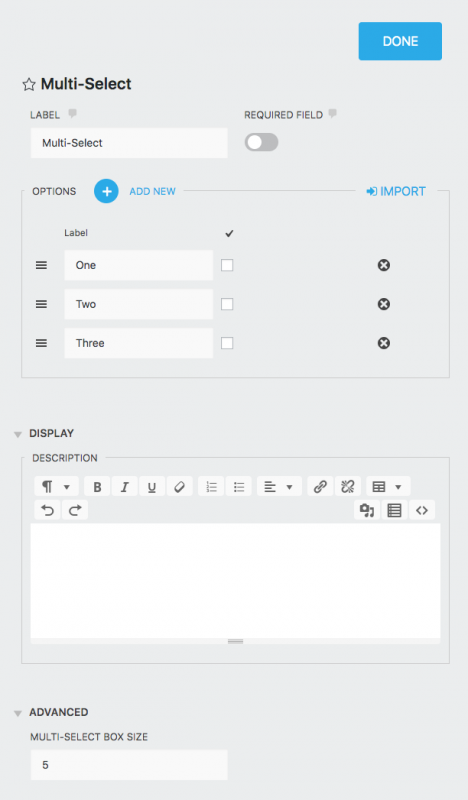
Need to Populate a Long List?
Learn how to easily populate a long list in Ninja Forms using a CSV (Comma-Separated Value) file and bulk pasting into the Import field.
View the step-by-step tutorial here.

General Settings

Label
The name of the field as displayed to your users.
Required Field
If enabled, this field must be completed before the form can be submitted.
Options

The options and values for the fields.

Add New
Adds another option to the list.
Label
The name of the list option displayed to the user.
Calc Value
When including this field in a calculation, the value entered here will be entered as a part of that calculation if the given list option is selected.
โ€œCheckโ€ column
Whichever list option checked here will display as the default option to the user.

Display Settings

Description
Any text entered here will appear between the label and the field.

Advanced Settings

Multi-Select Box Size
Sets the box height by the number of options shown at once.

To see these features, you will need to enable Developer Mode in Ninja Forms’ settings.

General Settings

Options

Field options.

Value

Use this to change what will be presented in the submission data if this list option is selected by the user. It defaults to match the Label of the list option. Only certain characters are supported for use here: a-z , 0-9 , hyphen โ€“ , underscore _ , at @ , and Space.

If your Select field is marked Required in the field properties, any option that has a blank Value (such as a placeholder like โ€œPlease choose one of the followingโ€) will result in a โ€˜required field errorโ€™. The visitor must select an option with a real Value before the form can be submitted.

Display Settings

Custom Class Names

Add custom classes to containers and fields.

Container
Text entered here applies a custom HTML class to this field’s wrapper.
Element
Text entered here applies a custom HTML class to this field’s element.
Help Text
Entering text here will display an informational icon next to the field label. When a user hovers over it, a small window will appear containing this text.

Advanced Settings

Label Position
Changes the orientation of the field label relative to the field element (above, below, left, right, hidden).

Administration Settings

Field Key
A unique programmatic key that can be used to identify and target your field for custom development. One is generated for each field automatically, and this is what you see pre-populated in the setting. It can be changed, though doing so will not update it in anything you’ve already written.
Admin Label
Text entered here will replace the Label of the field as it appears when viewing and exporting submissions only.

Select Image

The Select Image field is a list field that presents images as selectable list options. You can use any image from your Media Library as a list option. Users can make a single selection or multiple selections depending on your settings.
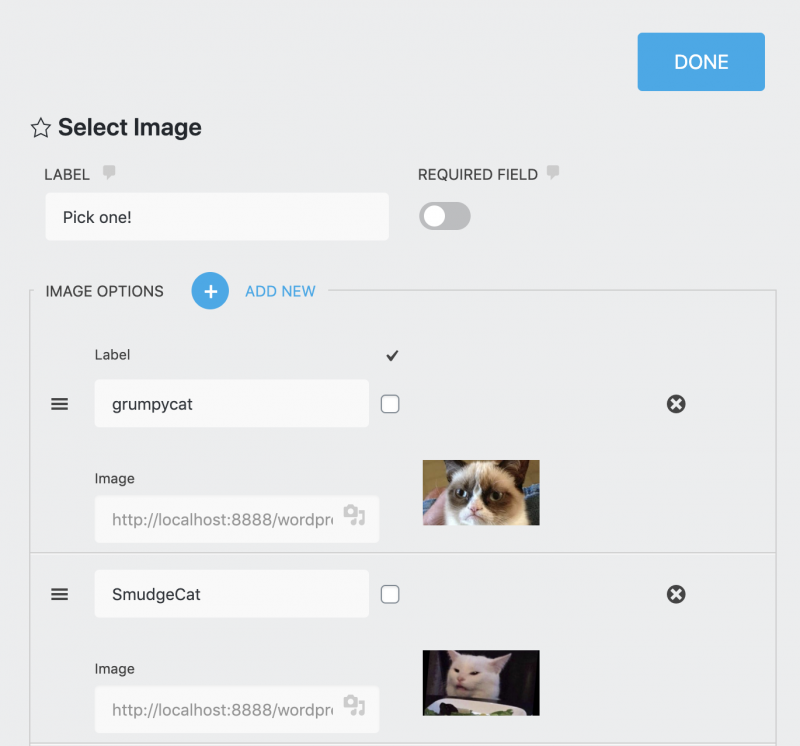
select image field settings

General Settings

Label
The name of the field as displayed to your users.
Required Field
If enabled, this field must be completed before the form can be submitted.
Image Options

The options and values for the image fields.

Add New
Adds another option to the list.
Label
The name of the list option displayed to the user. The label will be pre-populated with the file name of the image, but can be changed.
Calc Value
When including this field in a calculation, the value entered here will be entered as a part of that calculation if the given list option is selected.
Image
Click the Media Library icon in this field to select an image from your Media Library that will display for this list option.
โ€œCheckโ€ column
Whichever list option checked here will display as the default option to the user.
Image Display Options
Show Labels
Show or hide the individual list optionsโ€™ labels.
Allow Multiple Selections
If on (green), users can select 2+ list options instead of just 1.
List Orientation
Choose whether to display the image list options vertically (up/down) or horizontally (left/right).
Number of Columns
When Horizontal orientation is selected, this number determines the maximum number of columns the field will display images in. Depending on screen size (how much room actually exists to display from left to right) the field may display fewer columns than this setting.
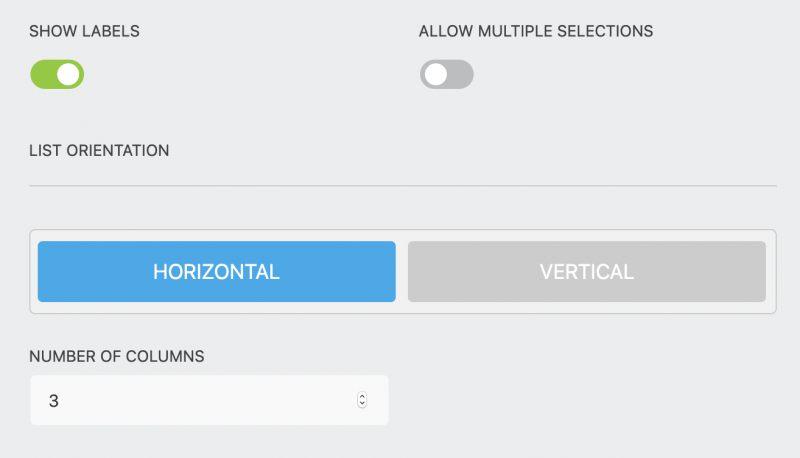
image display options for the select image field

Display Settings

Description
Any text entered here will appear between the label and the field.

Advanced Settings

Multi-Select Box Size
Sets the box height by the number of options shown at once.

To see these features, you will need to enable Developer Mode in Ninja Forms’ settings.

General Settings

Image Options

Image field options.

Value

Use this to change what will be presented in the submission data if this list option is selected by the user. It defaults to match the Label of the list option. Only certain characters are supported for use here: a-z , 0-9 , hyphen โ€“ , underscore _ , at @ , and Space.

If your Select field is marked Required in the field properties, any option that has a blank Value (such as a placeholder like โ€œPlease choose one of the followingโ€) will result in a โ€˜required field errorโ€™. The visitor must select an option with a real Value before the form can be submitted.

Display Settings

Custom Class Names

Add custom classes to containers and fields.

Container
Text entered here applies a custom HTML class to this field’s wrapper.
Element
Text entered here applies a custom HTML class to this field’s element.
Help Text
Entering text here will display an informational icon next to the field label. When a user hovers over it, a small window will appear containing this text.

Advanced Settings

Label Position
Changes the orientation of the field label relative to the field element (above, below, left, right, hidden).

Administration Settings

Field Key
A unique programmatic key that can be used to identify and target your field for custom development. One is generated for each field automatically, and this is what you see pre-populated in the setting. It can be changed, though doing so will not update it in anything youโ€™ve already written.
Admin Label
Text entered here will replace the Label of the field as it appears when viewing and exporting submissions only.

Single Checkbox

The Single Checkbox field places a single checkbox on your form.
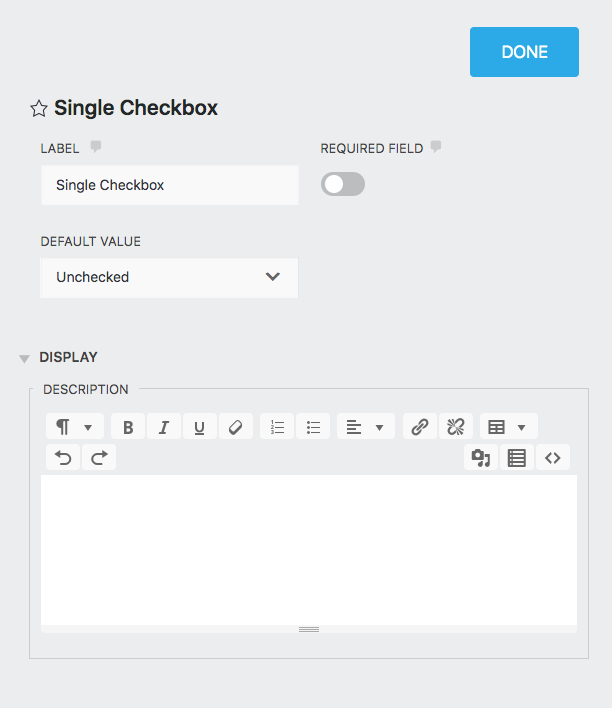
General Settings

Label
The name of the field as displayed to your users.
Required Field
If enabled, this field must be completed before the form can be submitted.
Default Value
Choose here whether the checkbox will be checked or unchecked by default when the user first views the form.

Display Settings

Description
Any text entered here will appear between the label and the field.

To see these features, you will need to enable Developer Mode in Ninja Forms’ settings.

General Settings

Checkbox Values

The values assigned to checked and unchecked states.

Checked Value
Text entered here will display in submissions for this form if the user checks the box. Defaults to โ€œCheckedโ€.
Unchecked Value
Text entered here will display in submissions for this form if the user does not check the box. Defaults to โ€œUnchecked”.

Restrictions Settings

Disable Input
Prevents users from typing into the field.

Display Settings

Custom Class Names

Add custom classes to containers and fields.

Container
Text entered here applies a custom HTML class to this field’s wrapper.
Element
Text entered here applies a custom HTML class to this field’s element.
Help Text
Entering text here will display an informational icon next to the field label. When a user hovers over it, a small window will appear containing this text.

Advanced Settings

Label Position
Changes the orientation of the field label relative to the field element (above, below, left, right, hidden).
Checked Calculation Value
Numeric value entered here will be used by any calculation including this field if the box is checked by the user.
Unchecked Calculation Value
Numeric value entered here will be used by any calculation including this field if the box is left unchecked by the user.

Administration Settings

Field Key
A unique programmatic key that can be used to identify and target your field for custom development. One is generated for each field automatically, and this is what you see pre-populated in the setting. It can be changed, though doing so will not update it in anything you’ve already written.
Admin Label
Text entered here will replace the Label of the field as it appears when viewing and exporting submissions only.

Checkbox List

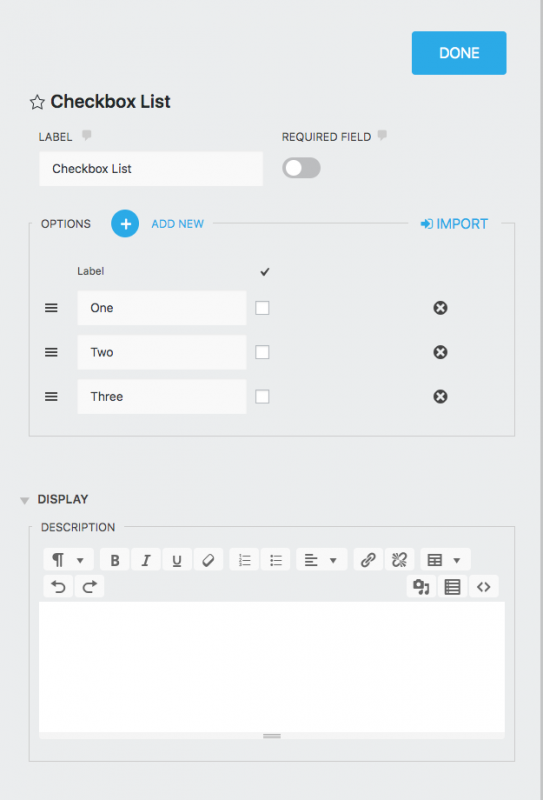
The Checkbox List field allows for single or multiple checked selections.
Need to Populate a Long List?
Learn how to easily populate a long list in Ninja Forms using a CSV (Comma-Separated Value) file and bulk pasting into the Import field.
View the step-by-step tutorial here.

General Settings

Label
The name of the field as displayed to your users.
Required Field
If enabled, this field must be completed before the form can be submitted.
Options

The options and values.

Add New
Adds another option to the list.
Label
The name of the list option displayed to the user.
โ€œCheckโ€ column
Whichever list option checked here will display as the default option to the user.

Display Settings

Description
Any text entered here will appear between the label and the field.

To see these features, you will need to enable Developer Mode in Ninja Forms’ settings.

General Settings

Options

Field options.

Value
Use this to change what will be presented in the submission data if this list option is selected by the user. It defaults to match the Label of the list option. Only certain characters are supported for use here: a-z , 0-9 , hyphen โ€“ , underscore _ , at @ , and Space.
Calc Value
When including this field in a calculation, the value entered here will be entered as a part of that calculation if the given list option is selected.

Display Settings

Custom Class Names

Add custom classes to containers and fields.

Container
Text entered here applies a custom HTML class to this field’s wrapper.
Element
Text entered here applies a custom HTML class to this field’s element.
Help Text
Entering text here will display an informational icon next to the field label. When a user hovers over it, a small window will appear containing this text.

Advanced Settings

Label Position
Changes the orientation of the field label relative to the field element (above, below, left, right, hidden).

Administration Settings

Field Key
A unique programmatic key that can be used to identify and target your field for custom development. One is generated for each field automatically, and this is what you see pre-populated in the setting. It can be changed, though doing so will not update it in anything you’ve already written.
Admin Label
Text entered here will replace the Label of the field as it appears when viewing and exporting submissions only.

Date/Time

The Date/Time field allows the visitor to select a day, month, year, and/or time from a standard calendar view.
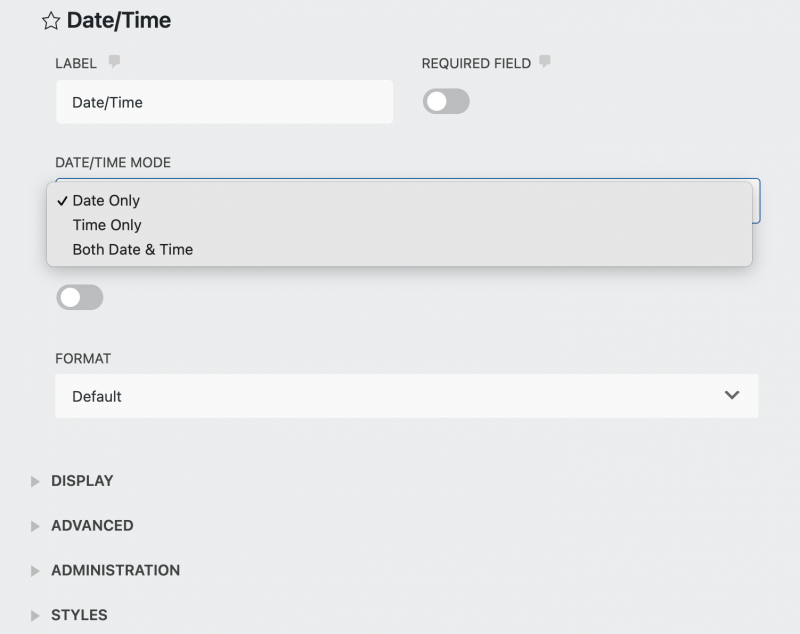
Date/Time Field
Back-End view

General Settings

Label
The name of the field as displayed to your users.
Required Field
If enabled, this field must be completed before the form can be submitted.
Date/Time Mode

The date and time controls.

Date Only
Displays only the calendar view for selecting day, month, and year
Time Only
Displays only the selectors for hour, minute, and (if 24 hour input is not selected under Time Settings) AM/PM options.
Both Date & Time
Displays both date and time options for selection.
Default to Current Date
If enabled, the field will display the current date until a selection is made.
If disabled, the field will display blank until a selection is made.
Format

Choose the format the date presents in.
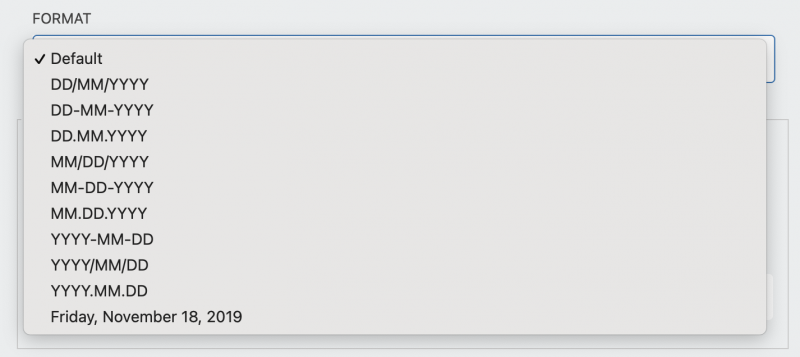
Date Format
Theย Friday, November 10, 2019ย format will be visible when theย default to the current dateย is enabled, otherwise you will need to manually create one in the placeholder field
Time Settings

This setting is visible only when Date/Time mode has selected Time Only or Both Date & Time

24 Hour Input
Choose to display either the 24 hour clock when enabled or the 12 hour AM/PM clock when disabled.
Minute Increment
Set the number of minutes the selection is incremented by (i.e. every 15 minutes, every 30 minutes, etc).

To see these features, you will need to enable Developer Mode in Ninja Forms’ settings.
Note to developers: the Date/Time field is built onย flatpickr.

Display Settings

Custom Class Names

Add custom classes to containers and fields.

Container
Text entered here applies a custom HTML class to this field’s wrapper.
Element
Text entered here applies a custom HTML class to this field’s element.
Help Text
Entering text here will display an informational icon next to the field label. When a user hovers over it, a small window will appear containing this text.

Advanced Settings

Label Position
Changes the orientation of the field label relative to the field element (above, below, left, right, hidden).
Year Range

The start and end year settings.

Start Year
Entering a year here will restrict the user from selecting any year earlier than that year.
End Year
Entering a year here will restrict the user from selecting any year later than that year.

Administration Settings

Field Key
A unique programmatic key that can be used to identify and target your field for custom development. One is generated for each field automatically, and this is what you see pre-populated in the setting. It can be changed, though doing so will not update it in anything you’ve already written.
Admin Label
Text entered here will replace the Label of the field as it appears when viewing and exporting submissions only.

Signature

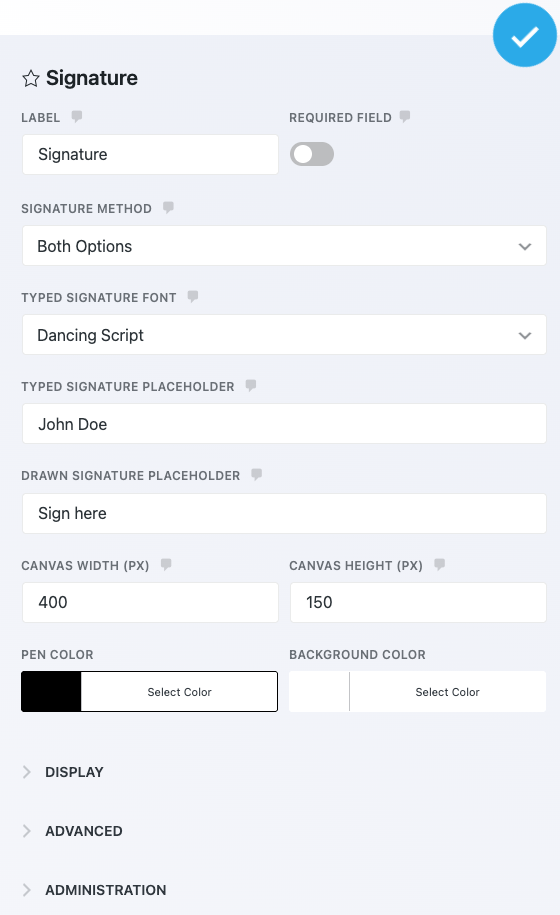
The Signature field allows a form’s end user to provide a digital signature with the form submission. It supports both typed and drawn signatures.
Please note that the Ninja Forms signature field does NOT meet full legal e-signature compliance standards (ESIGN Act, UETA, eIDAS) at this time. If you would like to use the field for this purpose in the future, please let us know!
image of the signature field open in the field settings window
Want signatures in your PDF?
Learn how to embed signature images in a PDF attachment using the PDF Form Submissions add-on.
View the details here.

General Settings

Label
The name of the field as displayed to your users.
Required Field
If enabled, this field must be completed before the form can be submitted.
Signature Method

Choose between the type of signature you want to collect.

Typed
Users can simply type their name and it will be rendered as a digital signature in your chosen font
Drawn
Users can manually draw their signature using their mouse, stylus, etc
Both
Users may select between either Typed or Drawn on the form
Typed Signature Font
Select the font that typed signatures are rendered in. This option is only visible if you have selected Typed or Both from Signature Method.
Typed Signature Placeholder
The value in this setting will appear as the placeholder for the typed signature. This option is only visible if you have selected Typed or Both from Signature Method.
Drawn Signature Placeholder
The value in this setting will appear as the placeholder text in the drawn signature canvas. This option is only visible if you have selected Drawn or Both from Signature Method.
Canvas Width & Canvas Height
Choose the display area in pixels for the drawn signature canvas.
Pen Color & Background Color

Select the โ€œinkโ€ and background colors for the signature and signature background.

Note on Accessibility
Insufficient contrast between pen and background can make interacting with this field difficult or impossible for some users. Be sure to select and pen color that will stand out from the background. If you have any doubts, free contrast checker tools are widely available.

Display Settings

Help Text
Entering text here will display an informational icon next to the field label. When a user hovers over it, a small window will appear containing this text.
Description
Any text entered here will appear between the label and the field.

Submit

Every form needs a Submit field. If you forget to add one, you’ll be prompted to do so when you Publish/save the form.
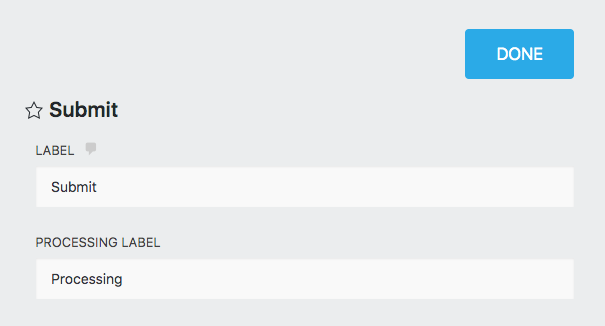
General Settings

Label

The name of the field as displayed to your users.

Processing Label

When the Submit button is pressed by a user, it will display “Processing” until the submission is complete. If you wish to change that language, you can do so here.

To see these features, you will need to enable Developer Mode in Ninja Forms’ settings.

Display Settings

Custom Class Names

  • Container: Text entered here applies a custom HTML class to this field’s wrapper
  • Element: Text entered here applies a custom HTML class to this field’s element

Administration Settings

Field Key

A unique programmatic key that can be used to identify and target your field for custom development. One is generated for each field automatically, and this is what you see pre-populated in the setting. It can be changed, though doing so will not update it in anything you’ve already written.


Address

The Address field is a Single Line Text field useful for entering street addresses. In addition to the default configuration for Single Line Text Fields, the Address field generates with the following additional properties:

  • It has the Custom Name Attribute “address”
  • It has the Autocomplete Attribute “address-line1”
  • It is flagged as personally identifiable data by default

City

The City field is a Single Line Text field. In addition to the default configuration for Single Line Text Fields, the City field generates with the following additional properties:

  • It has the Custom Name Attribute “city”
  • It has the Autocomplete Attribute “address-level2”

Email

The Email field is a Single Line Text field. In addition to the default configuration for Single Line Text Fields, the Email field generates with the following additional properties:

  • It has the Custom Name and Autocomplete Attributes “email”
  • It is flagged as personally identifiable data by default
  • It enforces email address formatting
  • The only permitted Restriction is Disable Browser Autocomplete

Firefox Only
Disabling autocomplete is ignored by Chrome, Edge, and other Chromium-based browsers due to their design priorities. This is a browser limitation, not a plugin issue. Ninja Forms correctly implements the HTML specification, but Chromium browsers override this setting by design.
For more details, see the Chromium issue tracker.

First Name

The First Name field is a Single Line Text field. In addition to the default configuration for Single Line Text Fields, the First Name field generates with the following additional properties:

  • It has the Custom Name Attribute “fname”
  • It has the Autocomplete Attribute “given-name”
  • It is flagged as personally identifiable data by default
  • The only permitted Restriction is Disable Browser Autocomplete

Firefox Only
Disabling autocomplete is ignored by Chrome, Edge, and other Chromium-based browsers due to their design priorities. This is a browser limitation, not a plugin issue. Ninja Forms correctly implements the HTML specification, but Chromium browsers override this setting by design.
For more details, see the Chromium issue tracker.

Last Name

The Last Name field is a Single Line Text field. In addition to the default configuration for Single Line Text Fields, the Last Name field generates with the following additional properties:

  • It has the Custom Name Attribute “lname”
  • It has the Autocomplete Attribute “family-name”
  • It is flagged as personally identifiable data by default
  • The only permitted Restriction is Disable Browser Autocomplete

Firefox Only
Disabling autocomplete is ignored by Chrome, Edge, and other Chromium-based browsers due to their design priorities. This is a browser limitation, not a plugin issue. Ninja Forms correctly implements the HTML specification, but Chromium browsers override this setting by design.
For more details, see the Chromium issue tracker.

Country

The Country field is a unique Select field. Unlike normal Select fields, the options list is pre-populated with a non-editable list of global countries which will appear in the user’s drop-down list when interacting with the field.
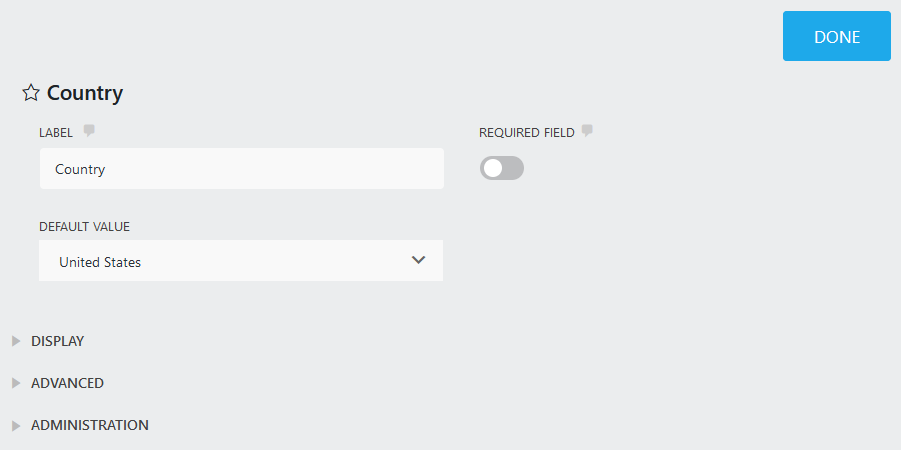
Country select field. Users can select their country from a pre-populated list.

The Country field also includes the following General Settings:

Default Value

The field will load pre-populated with the country selected in the drop-down list.


US States

The US States field is a Select field. The options list is pre-populated with a list of states within the United States which will appear in the user’s drop-down list when interacting with the field, along with a “Select State” option which can be set as default.
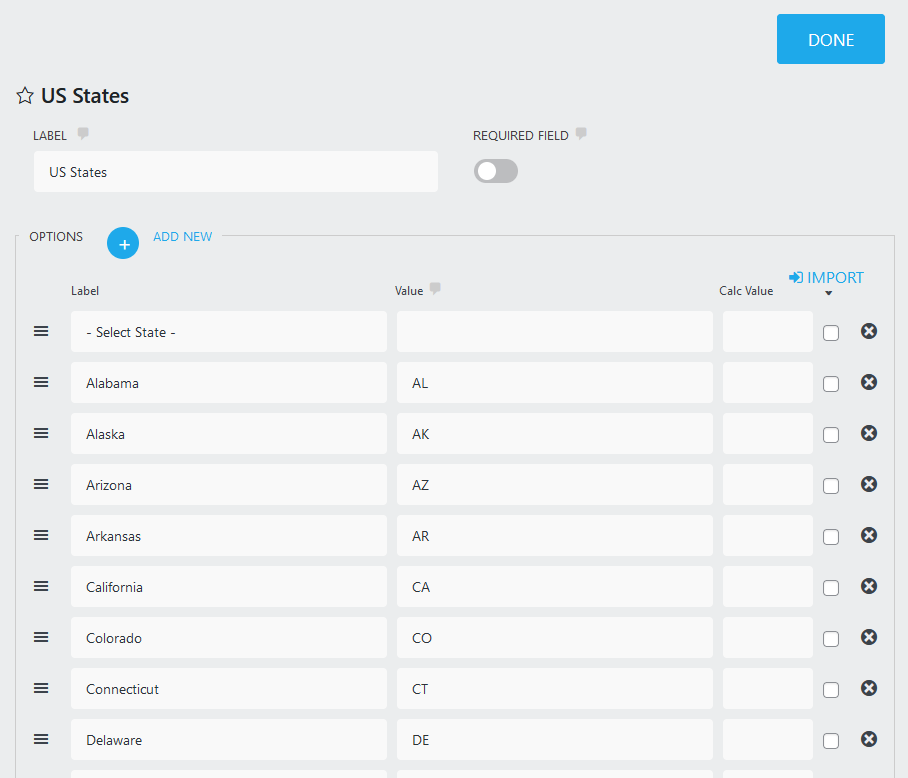
Pre-populated US States field.

Phone

The Phone field is a Single Line Text field for use with telephone numbers. In addition to the default configuration for Single Line Text Fields, the Phone field generates with the following additional properties:

  • It has the Custom Name Attribute “phone”
  • It has the Autocomplete Attribute “tel”
  • It is flagged as personally identifiable data by default

Zip

The Zip field is a Single Line Text field for use with zip (or postal) codes. In addition to the default configuration for Single Line Text Fields, the Zip field generates with the following additional properties:

  • It has the Custom Name Attribute “zip”
  • It has the Autocomplete Attribute “postal-code”

HTML

The HTML field will allow for the display of formatted text, links, and media anywhere on your form. Just place the field anywhere on the form, and whatever you have input into this field will display at that location. Contents of an HTML field will not display in submission data.
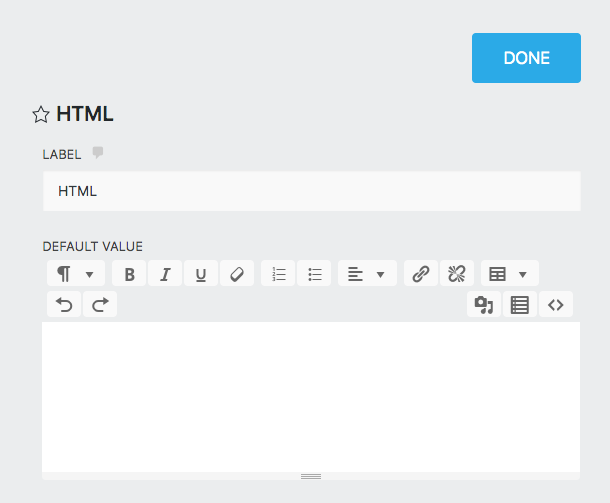
General Settings

Label

The name of the field as displayed to your users.

Default Value

Whatever is input here will display on the form wherever the HTML field is placed. Take advantage of the rich text editor to format text, create headers, display images, video, links and more.

To see these features, you will need to enable Developer Mode in Ninja Forms’ settings.

Display Settings

Custom Class Names

  • Container: Text entered here applies a custom HTML class to this field’s wrapper
  • Element: Text entered here applies a custom HTML class to this field’s element

Divider

The Divider field simply adds a horizontal line across the form wherever this field is placed. Use to divide a single page into clean sections.

To see these features, you will need to enable Developer Mode in Ninja Forms’ settings.

Custom Class Names

  • Container: Text entered here applies a custom HTML class to this field’s wrapper
  • Element: Text entered here applies a custom HTML class to this field’s element

Repeatable Fieldset

The Repeatable Fieldset, or Repeater, is a field type that you can drag and drop other fields into:
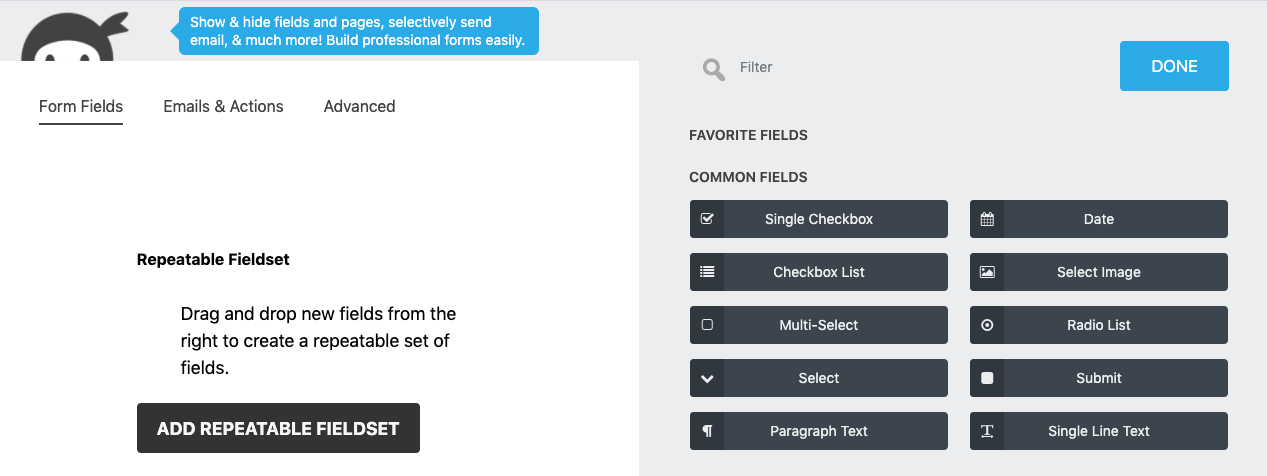
image of a repeater field newly added to the form, not yet containing any other fields
Repeater field when first added to the form.

Note that fields can only be dragged and dropped into the repeater from the list of fields in the new field window at this time.
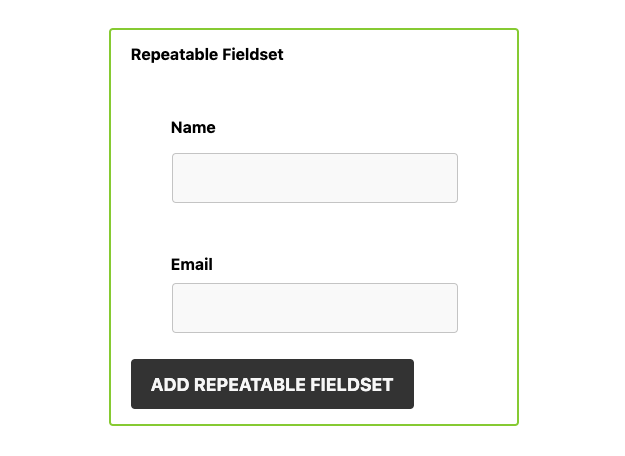
repeater field containing a name and email field
Repeater field viewed in the form builder containing a name and email field.

When a user views the form on the page, they will see all fields that you’ve placed inside the repeater as a group. Using an “Add” button, they can add as many groups of these fields as needed. The label of the repeater field and the text of the button can both be changed by adjusting the field’s Label setting.
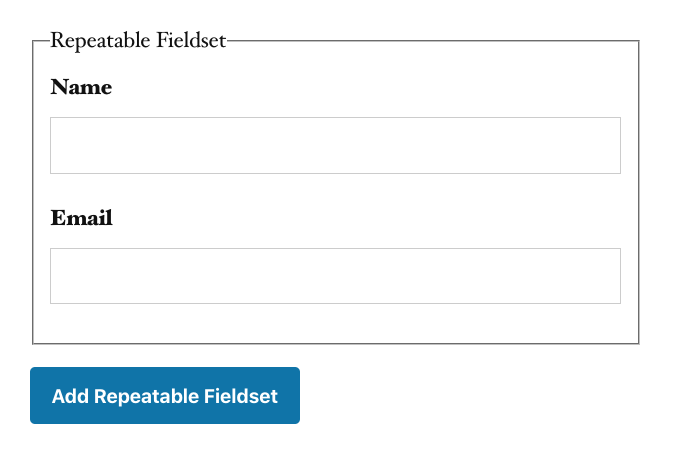
Repeatable field containing a Name and Email field on a page.

For example, if you’re building an event registration form where the person submitting that form might want to add multiple guests, you might place a Name and Email field within the repeater. The user could then enter their own name and email, then press the Add button to also add the name and email of their first guess, again for their second guest, and so on.

To see these features, you will need to enable Developer Mode in Ninja Forms’ settings.

Custom Class Names

  • Container: Text entered here applies a custom HTML class to this field’s wrapper
  • Element: Text entered here applies a custom HTML class to this field’s element

Confirm

The Confirm field can be combined with any other field on your form to provide a way to validate the input into that field. Unless the Confirm field matches the chosen target field, the form will not submit. This can be used to confirm the entry of an email address, password, and other fields.
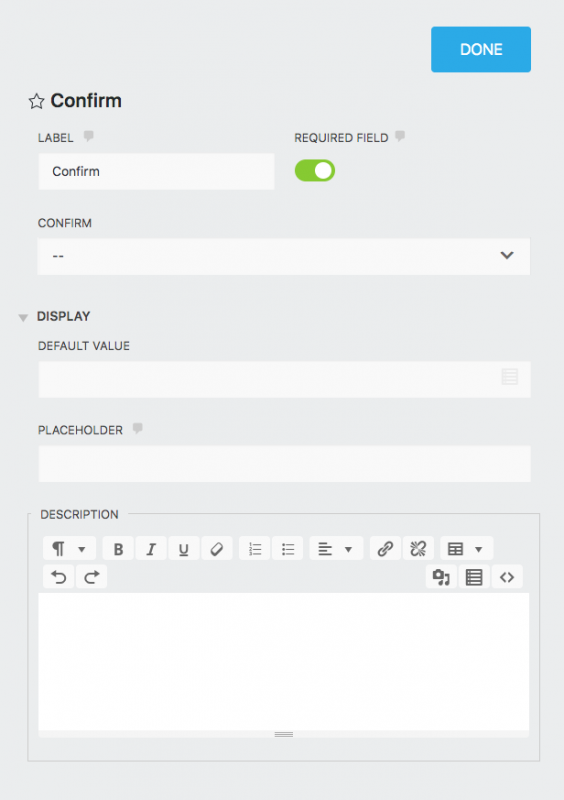
General Settings

Label

The name of the field as displayed to your users.

Required Field

If enabled, this field must be completed before the form can be submitted.This must be enabled for the validation feature to work.

Confirm

Select the field on the form you want the Confirm field to match/validate.

Display Settings

Default Value

The field will load pre-populated with any text entered as the Default Value. This setting supports the use of merge tags to display unique or custom values.

Placeholder

Any text entered here will appear in the field when the form loads, but disappear when the user starts typing in the field.

Description

Any text entered here will appear between the label and the field.

To see these features, you will need to enable Developer Mode in Ninja Forms’ settings.

Restrictions Settings

Limit Input to This Number

Limits the number of characters or words that a user can enter into the field. Text entered into the “Text to Appear After Counter” will display alongside the character/word counter.

Disable Input

Prevents users from typing into the field.

Display Settings

Custom Class Names

  • Container: Text entered here applies a custom HTML class to this field’s wrapper
  • Element: Text entered here applies a custom HTML class to this field’s element

Help Text

Entering text here will display an informational icon next to the field label. When a user hovers over it, a small window will appear containing this text.

Advanced Settings

Label Position

Changes the orientation of the field label relative to the field element (above, below, left, right, hidden)

Administration Settings

Field Key

A unique programmatic key that can be used to identify and target your field for custom development. One is generated for each field automatically, and this is what you see pre-populated in the setting. It can be changed, though doing so will not update it in anything you’ve already written.

Admin Label

Text entered here will replace the Label of the field as it appears when viewing and exporting submissions only.


Hidden

The Hidden field does not display for users viewing the form. It can only be viewed from the form builder by a logged in administrator. Use this to store information that you want passed into submission data or sent along in an email, but not displayed to the user.
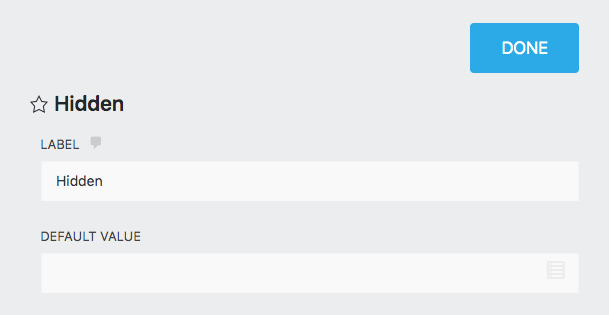
Please note if required fields are hidden, they are not going to be treated as required.

General Settings

Label

The name of the field as will be displayed in the Ninja Forms builder (not visible to users).

Default Value

The field will load pre-populated with any text entered as the Default Value. This setting supports the use of merge tags to display unique or custom values.

Administration Settings

Field Key

A unique programmatic key that can be used to identify and target your field for custom development. One is generated for each field automatically, and this is what you see pre-populated in the setting. It can be changed, though doing so will not update it in anything you’ve already written.

Admin Label

Text entered here will replace the Label of the field as it appears when viewing and exporting submissions only.


Number Field

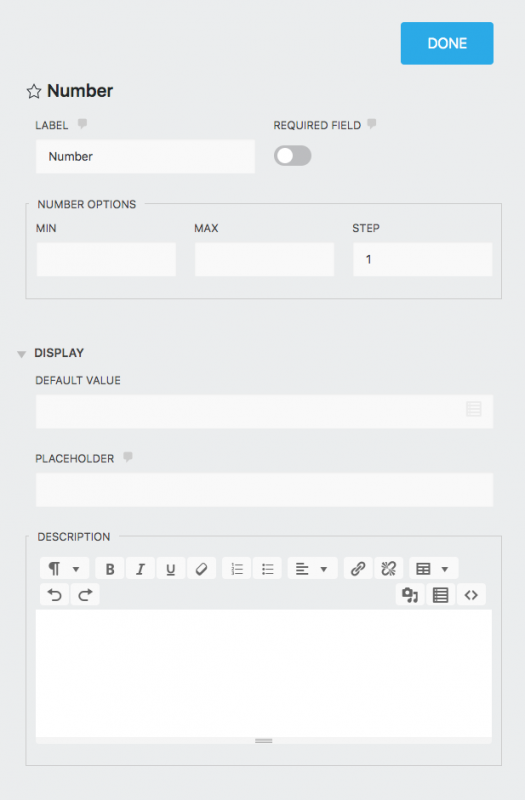
The number field supports only numeric characters and comes with an up/down arrow for users to scroll through number values in designated steps.
General Settings

Label

The name of the field as displayed to your users.

Required Field

If enabled, this field must be completed before the form can be submitted. This must be enabled for the validation feature to work.

Number Options

  • Min: The minimum value that a user can enter into this field
  • Max: The maximum value that a user can enter into this field
  • Step: Restricts the values that can be entered into the field by the increment entered here. Example: Step = 1 will allow for 1, 2, 3, 4, 5, etc but not 1.5 or 4.3. Step = 10 will allow for 10, 20, 30, 40, 50, etc but not 15 or 43. Enter .01 here to allow for numbers like 9.99, 15.49, etc.
The letter ‘e’ is allowed within the Number field for Scientific notation.
Example: 2.34 x 10E6 or 2.34 x 10^6 is equal to 2,340,000

What is Scientific notation?
Scientific notation is the way that scientists easily handle very large numbers or very small numbers.

Display Settings

Default Value

The field will load pre-populated with any text entered as the Default Value. This setting supports the use of merge tags to display unique or custom values.

Placeholder

Any text entered here will appear in the field when the form loads, but disappear when the user starts typing in the field.

Description

Any text entered here will appear between the label and the field.

To see these features, you will need to enable Developer Mode in Ninja Forms’ settings.

Display Settings

Custom Class Names

  • Container: Text entered here applies a custom HTML class to this field’s wrapper
  • Element: Text entered here applies a custom HTML class to this field’s element

Help Text

Entering text here will display an informational icon next to the field label. When a user hovers over it, a small window will appear containing this text.

Advanced Settings

Label Position

Changes the orientation of the field label relative to the field element (above, below, left, right, hidden)

Administration Settings

Field Key

A unique programmatic key that can be used to identify and target your field for custom development. One is generated for each field automatically, and this is what you see pre-populated in the setting. It can be changed, though doing so will not update it in anything you’ve already written.

Admin Label

Text entered here will replace the Label of the field as it appears when viewing and exporting submissions only.


Recaptcha

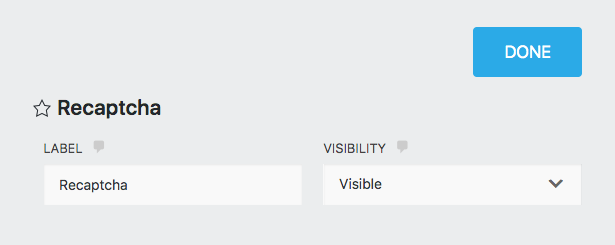
The Recaptcha field links your form with Google’s reCAPTCHA technology, forcing a user to complete the reCAPTCHA challenge before the form can be successfully submitted.

For this field to work, you must link Ninja Forms to your Google account (see reCAPTCHA section). Failing to do this will result in a non-functional field.
General Settings

Label

The name of the field as displayed to your users if you choose for the reCAPTCHA to be visible.

Visibility

Select whether to display an “I’m not a robot” field or to detect if the user is a robot in the background.

To see these features, you will need to enable Developer Mode in Ninja Forms’ settings.

Display Settings

Custom Class Names

  • Container: Text entered here applies a custom HTML class to this field’s wrapper
  • Element: Text entered here applies a custom HTML class to this field’s element

Anti-Spam

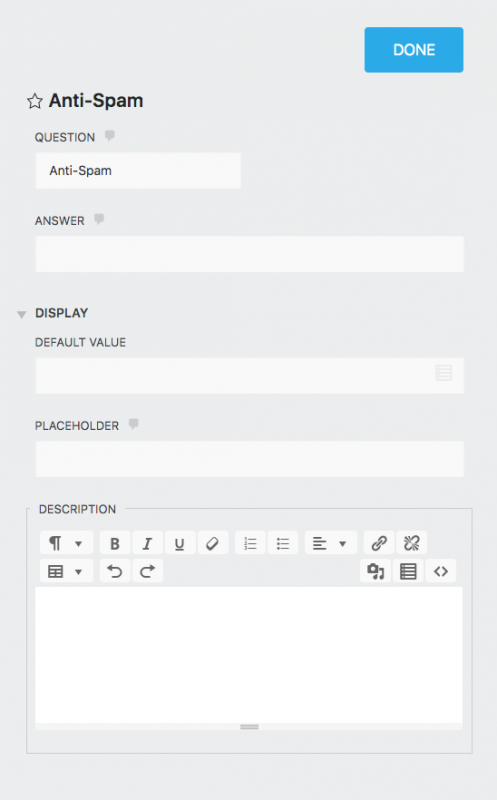
Challenge your users with a question that must be answered correctly in order for the form to be submitted.
General Settings

Question

The question you want your users to answer in order to allow the form to be submitted.

Answer

The answer expected for the question setting. The users’ answer must match exactly. These are case sensitive.

Display Settings

Default Value

The field will load pre-populated with any text entered as the Default Value. This setting supports the use of merge tags to display unique or custom values.

Placeholder

Any text entered here will appear in the field when the form loads, but disappear when the user starts typing in the field.

Description

Any text entered here will appear between the label and the field.

To see these features, you will need to enable Developer Mode in Ninja Forms’ settings.

Restrictions Settings

Limit Input to This Number

Limits the number of characters or words that a user can enter into the field. Text entered into the “Text to Appear After Counter” will display alongside the character/word counter.

Disable Input

Prevents users from typing into the field.

Display Settings

Custom Class Names

  • Container: Text entered here applies a custom HTML class to this field’s wrapper
  • Element: Text entered here applies a custom HTML class to this field’s element

Help Text

Entering text here will display an informational icon next to the field label. When a user hovers over it, a small window will appear containing this text.

Advanced Settings

Question Position

Changes the orientation of the Question relative to the field element (above, below, left, right, hidden).

Administration Settings

Field Key

A unique programmatic key that can be used to identify and target your field for custom development. One is generated for each field automatically, and this is what you see pre-populated in the setting. It can be changed, though doing so will not update it in anything you’ve already written.

Admin Label

Text entered here will replace the Label of the field as it appears when viewing and exporting submissions only.


Star Rating

The Star Rating field offers a “line-of-stars” graphic to the user, from which they can select a rating from a range of your choice.
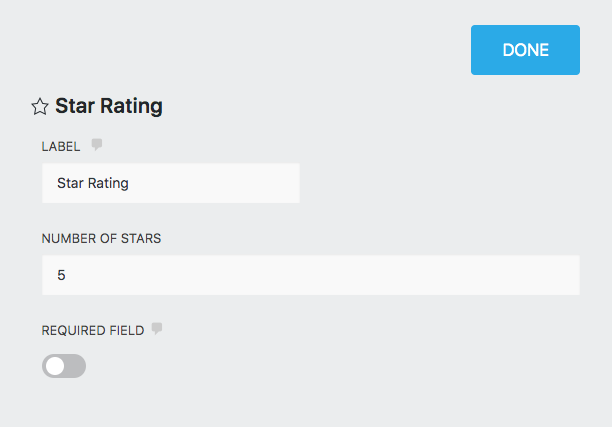
General Settings

Label

The name of the field as displayed to your users.

Number of Stars

The number of stars that will appear in your “line-of-stars” graphic.

Required Field

If enabled, this field must be completed before the form can be submitted.

To see these features, you will need to enable Developer Mode in Ninja Forms’ settings.

Display Settings

Default Value

Entering a numeric value here that is within the range of stars on the field (1-5, 1-10, etc) will result in that number of stars being marked by default when the form loads.

Custom Class Names

  • Container: Text entered here applies a custom HTML class to this field’s wrapper
  • Element: Text entered here applies a custom HTML class to this field’s element

Advanced Settings

Label Position

Changes the orientation of the field label relative to the field element (above, below, left, right, hidden)

Administration Settings

Field Key

A unique programmatic key that can be used to identify and target your field for custom development. One is generated for each field automatically, and this is what you see pre-populated in the setting. It can be changed, though doing so will not update it in anything you’ve already written.

Admin Label

Text entered here will replace the Label of the field as it appears when viewing and exporting submissions only.


Was this article helpful?

Related articles: